AWS Emulator on Apple Silicon: ARM64 Setup for M-Series Macs
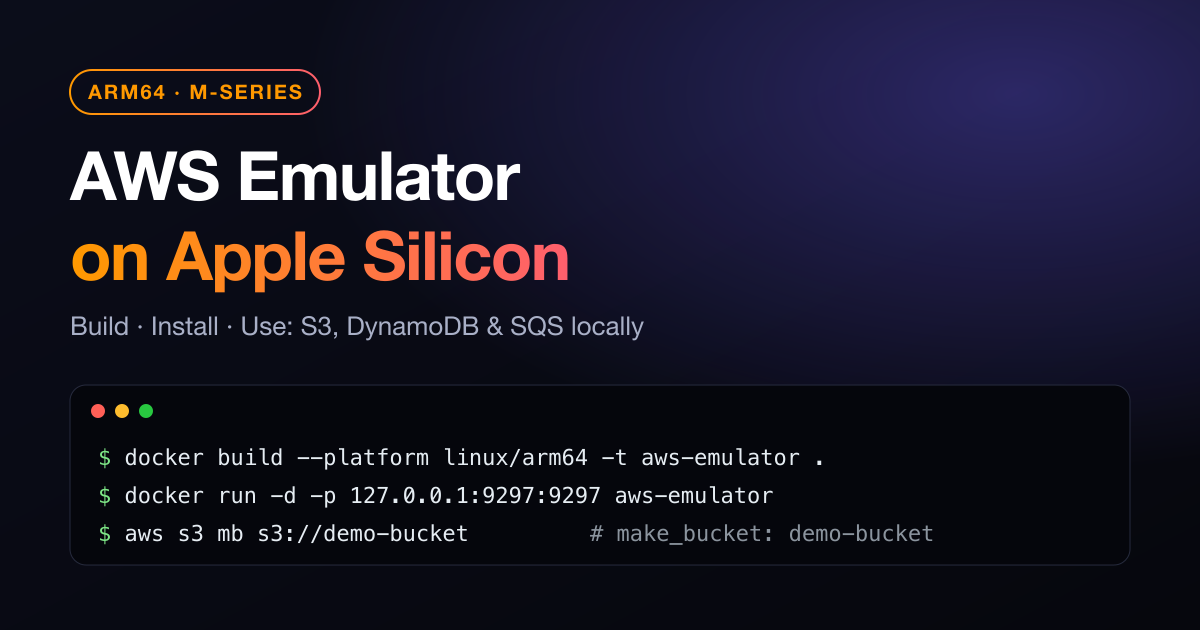
AWS Emulator is AWS’s official local emulator of the AWS APIs. It lets you run the AWS CLI, SDKs and Terraform against S3, DynamoDB, SQS and hundreds of other services on your own machine, with no AWS account and no bill. The setup docs cover Linux well. On a MacBook with an M-series chip, though, all you get is a one-liner: “use a container built from a short Dockerfile”. It doesn’t say which package to use on ARM64 or how to connect the CLI to a container. This guide covers both.
Why Apple silicon needs extra care
- No native macOS build. AWS ships RPM and Debian packages for Linux only. Building from source is supported only on Linux (x86_64 and aarch64), and it needs 100 GB+ of free disk. On a Mac you run the Linux build inside Docker.
- Your containers are ARM64. Docker Desktop on M1/M2/M3/M4/M5 runs
linux/arm64containers natively, so you need theaarch64RPM. The x86_64 package won’t install in an arm64 image. If you force--platform linux/amd64instead, everything runs under emulation and gets much slower. - Auth and TLS are on by default. Each emulator run creates its own access keys and a self-signed certificate inside the container. Dummy
test/testkeys and a bare--endpoint-urlwon’t work. You have to copy those files out to your Mac.
Prerequisites
uname -m                                    # arm64
docker info --format '{{.Architecture}}'    # aarch64
brew install awscli                         # AWS CLI v2
Any Docker-compatible runtime works (Docker Desktop, OrbStack, Colima, Podman). This guide uses the docker CLI.
Step 1: The ARM64 Dockerfile
Create an empty folder with this Dockerfile in it:
FROM public.ecr.aws/amazonlinux/amazonlinux:2023-minimal

# The aarch64 build is the one that matters on Apple silicon
ADD https://downloads.aws.com/aws-emulator/packages/aws-emulator/LTS/latest/aws-emulator-aarch64.rpm /tmp/aws-emulator.rpm
RUN rpm -i /tmp/aws-emulator.rpm && rm /tmp/aws-emulator.rpm

# Run as an unprivileged user with a writable home (keys and certs are written here)
RUN mkdir -p /home/emulator && chown 1000 /home/emulator
USER 1000
ENV HOME=/home/emulator

EXPOSE 9297
# Bind to 0.0.0.0, otherwise the emulator only listens on the container's own loopback
ENTRYPOINT ["aws-emulator", "-b", "0.0.0.0"]
Two lines do most of the work. aws-emulator-aarch64.rpm matches the Mac’s CPU. -b 0.0.0.0 is needed because the emulator binds to 127.0.0.1 by default, which can’t be reached from outside the container.
Step 2: Build the image
docker build --platform linux/arm64 -t aws-emulator:latest .

# Sanity check: should print linux/arm64
docker image inspect aws-emulator --format '{{.Os}}/{{.Architecture}}'
Step 3: Run the emulator
docker run -d --name aws-emulator -p 127.0.0.1:9297:9297 aws-emulator

# Optional: opt out of usage telemetry (arguments go after the image name)
# docker run -d --name aws-emulator -p 127.0.0.1:9297:9297 aws-emulator --telemetry off

docker logs aws-emulator
Look for the emulator server information log line. You may also see a warning about binding to 0.0.0.0. That refers to the container’s network only. The 127.0.0.1: prefix in -p keeps the port reachable from your Mac alone, not from the rest of your Wi-Fi.
Step 4: Point the AWS CLI at the container
At startup the emulator writes a ready-made AWS config, an emulator_credentials file and the TLS ca.pem to /home/emulator/.aws/emulator/9297/ inside the container. Add this function to ~/.zshrc. It copies those files out and sets up the current shell:
aws-emu-env() {
  local dir="$HOME/.aws/emulator-docker"
  mkdir -p "$dir" && chmod 700 "$dir"
  docker cp aws-emulator:/home/emulator/.aws/emulator/9297/. "$dir/" || return 1
  unset AWS_PROFILE AWS_ACCESS_KEY_ID AWS_SECRET_ACCESS_KEY AWS_SESSION_TOKEN
  export AWS_CONFIG_FILE="$dir/config"
  export AWS_SHARED_CREDENTIALS_FILE="$dir/emulator_credentials"
  export AWS_CA_BUNDLE="$dir/ca.pem"            # overrides the in-container path in config
  export AWS_ENDPOINT_URL="https://localhost:9297"
  export AWS_REGION="us-east-1"
}
source ~/.zshrc && aws-emu-env
curl --cacert "$AWS_CA_BUNDLE" https://localhost:9297/__admin/health # ok
aws sts get-caller-identityThe emulator creates new keys and a new certificate every time the container starts, so re-run
aws-emu-envafter each restart. The settings only apply to the current shell. Open a new terminal and you’re back on your real AWS profile.
Quick examples
S3: buckets and objects
aws s3 mb s3://demo-bucket
echo "hello from my M-series Mac" > hello.txt
aws s3 cp hello.txt s3://demo-bucket/
aws s3 ls s3://demo-bucket/
aws s3 cp s3://demo-bucket/hello.txt -
DynamoDB: a table in seconds
aws dynamodb create-table --table-name Notes \
  --attribute-definitions AttributeName=id,AttributeType=S \
  --key-schema AttributeName=id,KeyType=HASH \
  --billing-mode PAY_PER_REQUEST

aws dynamodb put-item --table-name Notes \
  --item '{"id":{"S":"1"},"text":{"S":"emulated, not billed"}}'

aws dynamodb get-item --table-name Notes --key '{"id":{"S":"1"}}'
SQS: send and receive
QURL=$(aws sqs create-queue --queue-name jobs --query QueueUrl --output text)
aws sqs send-message --queue-url "$QURL" --message-body '{"job":"resize","id":42}'
aws sqs receive-message --queue-url "$QURL"
Python (boto3): zero code changes
Recent SDKs (boto3 1.28+) read the same environment variables, so your application code needs no emulator-specific changes:
import boto3

s3 = boto3.client("s3")  # endpoint, CA bundle and keys come from the environment
s3.create_bucket(Bucket="py-demo")
s3.put_object(Bucket="py-demo", Key="hi.txt", Body=b"hi from boto3")
print(s3.get_object(Bucket="py-demo", Key="hi.txt")["Body"].read())
Troubleshooting on M-series Macs
rpmfails with “intended for a different architecture”: you downloaded the x86_64 package. Useaws-emulator-aarch64.rpm.SSL validation failed/CERTIFICATE_VERIFY_FAILED:AWS_CA_BUNDLEisn’t set, or it points to a certificate from an earlier container run. Re-runaws-emu-env.- Signature or invalid-key errors: the keys are stale after a restart, or an exported
AWS_ACCESS_KEY_IDis overriding the credentials file.aws-emu-envfixes both. - Connection reset / empty reply: the image is missing
-b 0.0.0.0, or you forgot the-pport mapping. - Resources disappear after a restart: that’s by design. Emulator state lives in memory, so every run starts clean.
- Is an API supported? Check the fidelity scores on the releases page and the
issues/things-that-do-not-work/folder in the repository.
Clean up
docker rm -f aws-emulator
rm -rf ~/.aws/emulator-docker
That’s it: the right RPM, a container that binds correctly, and one shell function that copies the keys and certificate out. With that, AWS Emulator runs natively on any M-series MacBook, and local AWS development and CI-style tests work without an AWS account.