Set Up an Observability Lab with Docker Compose
A tutorial starts an app with one long docker run command and a monitoring tool with another, each with its own flags for ports and folders. A week later you cannot remember them, and nothing starts the same way twice. This lesson sets up the observability lab for the rest of the course, made repeatable by one Docker Compose file and one command.
Docker Compose in plain words
As the stack overview explained, a container is a packaged program that runs isolated from the rest of your computer. It starts from an image, a read-only package of the program and everything it needs, such as python:3.12.8-slim, a small Python 3.12 installation.
Docker Compose starts several containers together. You describe them in one YAML file, docker-compose.yml, where each entry under services is a service: one container and its settings.
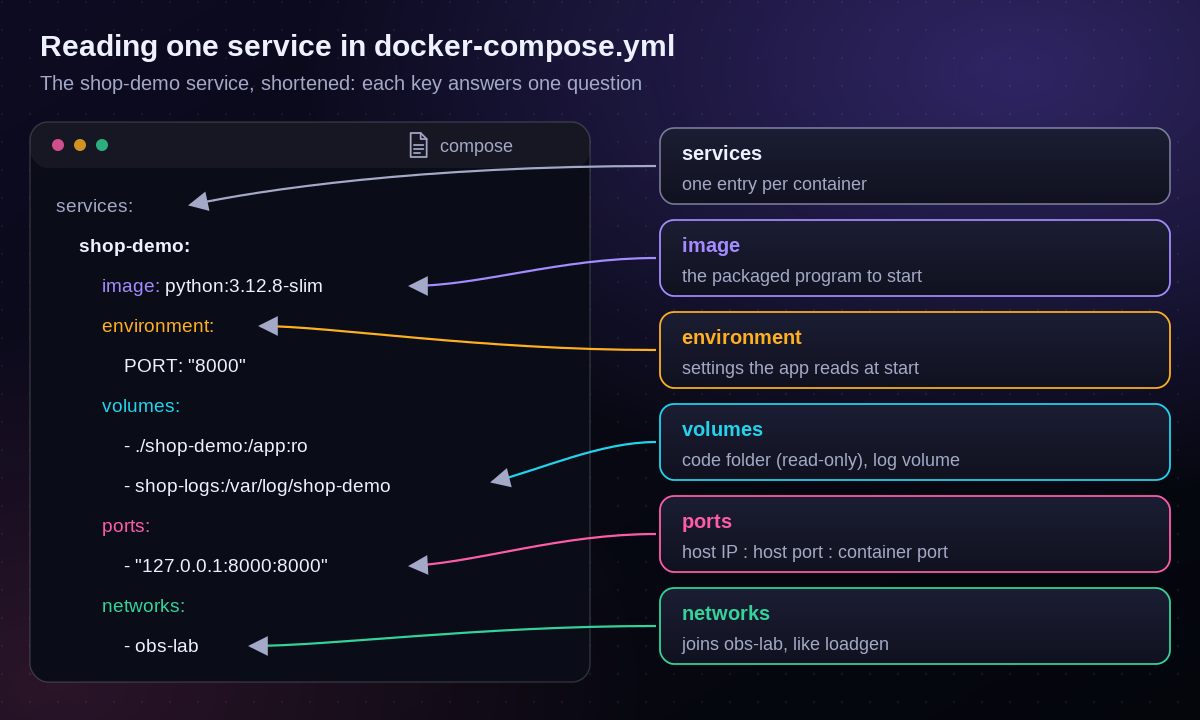
A service answers a few questions, labelled in the diagram on the lab's shop-demo service. Which image? Which environment variables, settings the program reads at start? Which ports to publish, forwarding a port on your machine to one inside the container? Which volumes, storage outside the container that survives its removal? Which network, so containers can find each other?
Walk through the lab's Compose file
Open course-labs/open-source-observability-stack/01-lab-setup/docker-compose.yml in an editor. shop-demo runs the plain Python image with command: ["python", "/app/app.py"]. Its volume line ./shop-demo:/app:ro is a bind mount: your shop-demo folder appears inside the container at /app, read-only (ro), so there is no image to build.
The next line, shop-logs:/var/log/shop-demo, attaches a named volume, storage that Docker manages. The app writes its JSON log file there, for a log shipper to read in a later section. "127.0.0.1:8000:8000" publishes container port 8000 as port 8000 on 127.0.0.1 only, so no other machine can connect.
A health check makes Docker run a small command inside the container every 10 seconds that requests /health; after three failures in a row, the container is marked unhealthy. restart: unless-stopped starts the container again whenever its program exits, unless you stopped it yourself.
The rest of the file, shortened and without comments, defines loadgen and the two shared pieces:
  loadgen:
    image: python:3.12.8-slim
    command: ["python", "/loadgen/loadgen.py"]
    environment:
      TARGET: http://shop-demo:8000
      RATE: "5"
    volumes:
      - ./loadgen:/loadgen:ro
    networks:
      - obs-lab
    depends_on:
      shop-demo:
        condition: service_healthy
    restart: unless-stopped

networks:
  obs-lab: {}

volumes:
  shop-logs: {}
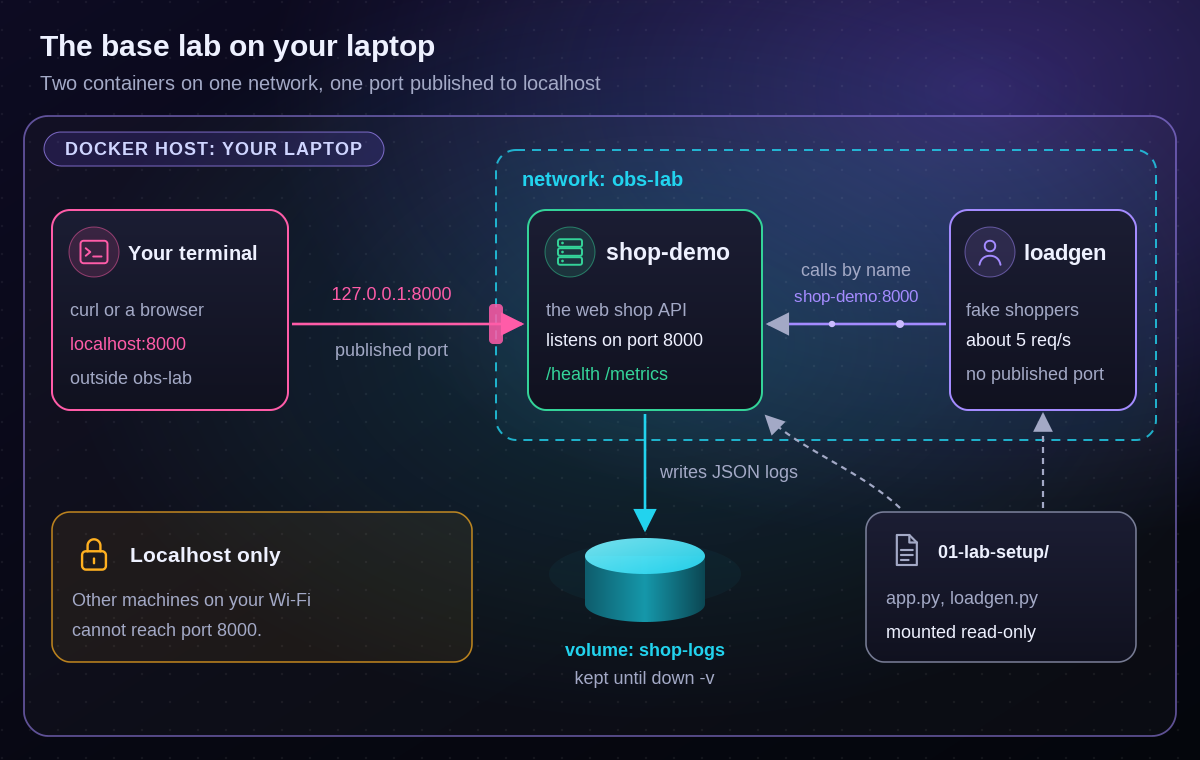
loadgen publishes no port: it only sends requests, about five per second. It finds the app at http://shop-demo:8000 because Docker runs a name service (DNS) on each Compose network, so on obs-lab a service name works as a host name. condition: service_healthy makes Compose start loadgen only after shop-demo passes its health check.
Compose puts the project name, by default the folder name, in front of what it creates: the network is 01-lab-setup_obs-lab, and the containers are 01-lab-setup-shop-demo-1 and 01-lab-setup-loadgen-1. The diagram shows why the app has two addresses.
Start the lab and check it
Starting takes five commands, each with a result to check before the next, as the flowchart shows.
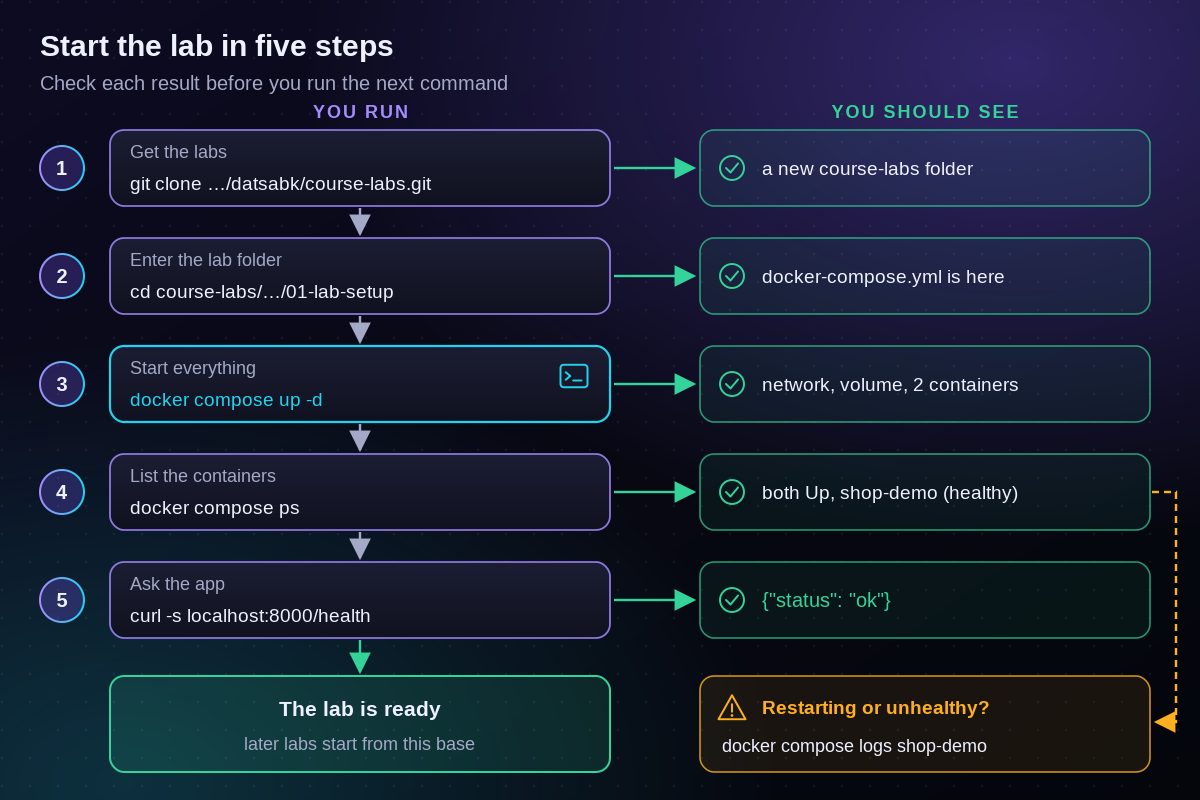
-d, for detached, runs the containers in the background and gives your prompt back. Compose creates the network and the volume, starts shop-demo, waits up to about 10 seconds for its first health check to pass, then starts loadgen. The first run also downloads the image.
docker compose ps lists the containers of this folder's project. You should see something like this, with your own times (IMAGE, COMMAND and CREATED columns cut to fit):
NAME                       SERVICE     STATUS                    PORTS
01-lab-setup-loadgen-1     loadgen     Up 25 seconds
01-lab-setup-shop-demo-1   shop-demo   Up 31 seconds (healthy)   127.0.0.1:8000->8000/tcp
Up means the program is running. The brackets hold the health check's verdict: (health: starting) at first, then (healthy). loadgen has no health check, so it shows only Up. PORTS confirms the mapping from 127.0.0.1:8000 to port 8000 inside.
Then ask the app. curl -s localhost:8000/health should print {"status": "ok"}, which only says the app is alive. /metrics is the page Prometheus reads in the next section, in the text format from What Is a Metric?. This command keeps only the checkout counts:
$ curl -s localhost:8000/metrics | grep 'route="/checkout",status'
http_requests_total{method="POST",route="/checkout",status="200"} 137
http_requests_total{method="POST",route="/checkout",status="500"} 5
In this example run, 137 checkouts had succeeded and 5 had failed. Your numbers differ, and they grow each time you ask because loadgen keeps shopping, which proves that the app, the network and the published port all work.
Everyday Compose commands
Run these inside the lab folder, where Compose finds docker-compose.yml:
docker compose up -d: create and start everything. After you edit the file, run it again and Compose recreates only the containers whose settings changed.docker compose ps: list this lab's containers;-aincludes stopped ones.docker compose logs -f shop-demo: print one service's output and keep following it. Ctrl+C stops the following, not the lab.docker compose restart shop-demo: stop and start the same container. That reloadsapp.pyfrom your folder but ignores changes todocker-compose.yml.docker compose down: remove the containers and the network. Theshop-logsvolume stays.
docker compose down -v also deletes the named volumes, here shop-logs and its log file. Your lab folder is never touched, because bind mounts are not volumes. In later labs volumes also hold metrics, dashboards and log indices, so down -v is a full reset.
When the lab will not start
Port already in use
If up fails with an error ending in port is already allocated or address already in use, something else holds port 8000, usually another lab. docker ps shows every running container and its ports; run docker compose down in that lab's folder. For a program that is not a container, lsof -i :8000 on macOS or Linux names it.
To keep that program, change only the left-hand port in the file, for example to "127.0.0.1:8080:8000", run up -d and use localhost:8080. loadgen still calls shop-demo:8000, because inside obs-lab the container's own port counts.
Not enough memory
These two containers need little memory; later labs need gigabytes. When Docker runs out of memory, Linux kills a process and its container stops with exit code 137: docker compose ps -a shows Exited (137), or Restarting (137) while a restart policy brings it back. Check use with docker stats --no-stream, stop other labs, or raise Docker's memory limit as the overview lesson showed.
Containers restarting
A STATUS such as Restarting (1) 4 seconds ago means the program keeps exiting with code 1 and the restart policy keeps starting it, waiting longer each time. The reason is in the last lines of docker compose logs shop-demo: a word where shop-demo's environment needs a number, such as SLOW_CHECKOUT_RATE: "five", ends in ValueError: could not convert string to float: 'five'. Fix the file and run up -d.
Up with (unhealthy) is different: the program runs but /health fails, and Docker reports it without restarting anything. Its logs show why.
Check yourself
You set RATE to "10" in docker-compose.yml and run docker compose restart loadgen, but nothing changes. Why?
restart reuses the container with the settings it was created with. docker compose up -d recreates it with the new environment.
loadgen calls http://shop-demo:8000, but that address fails in your browser. Why?
The name shop-demo only works inside obs-lab, through Docker's name service. Your browser is outside that network, so it uses the published port, localhost:8000.
After docker compose down and up -d, are the old log lines still in the log file? And after down -v?
After down, yes: the shop-logs volume survives and the app appends to the same file. down -v deletes the volume, so the file starts empty.