Cloud Autoscaling Explained: Paying for What You Use
Your web shop runs on three VMs. Most afternoons they sit almost idle, yet during an evening sale pages crawl and customers see errors. You could pay all day for servers that cover the busiest hour, or let the cloud add and remove them as traffic changes. That is cloud autoscaling, and this lesson shows how it works and which traps to avoid.
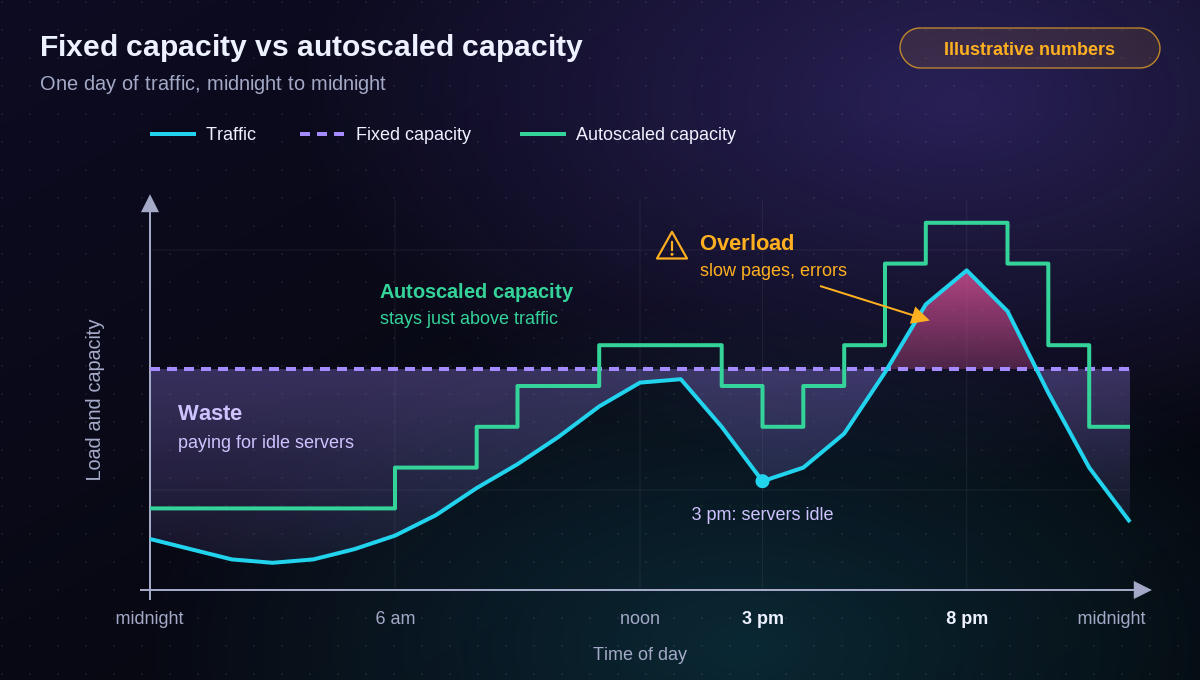
Fixed capacity: idle at 3 pm, overloaded at 8 pm
Capacity is how much work your servers can handle at once. Traffic rises and falls all day, but fixed servers give the same capacity every hour. Sized for the average, they are overwhelmed at the peak; sized for the peak, they sit idle most of the day.
Autoscaling changes how many servers run to match demand, automatically. Adding servers is scaling out; removing them is scaling in. It is the rapid elasticity of lesson 1 on autopilot, and it saves money because a running VM bills every second, busy or idle, as lesson 5 showed.
On this illustrative day, notice the waste and overload under fixed capacity, and the autoscaled line just above the traffic.
Scale up or scale out?
Vertical scaling, or scaling up, gives one server more power: a bigger instance type. On EC2 you must stop an instance to change its type, so the app is down while it restarts, and the largest type is a hard ceiling.
Horizontal scaling, or scaling out, adds more servers of the same size behind a load balancer, the service that shares users' requests among your servers. Nothing has to stop, and losing one server costs only part of your capacity.
So cloud autoscaling almost always means adding or removing identical instances: copies built from the same image and settings, so that any of them can serve any request.
Auto scaling groups: min, desired and max
On AWS, Amazon EC2 Auto Scaling manages an Auto Scaling group: a set of identical EC2 instances treated as one unit. Azure calls the same idea a virtual machine scale set; Google Cloud, a managed instance group.
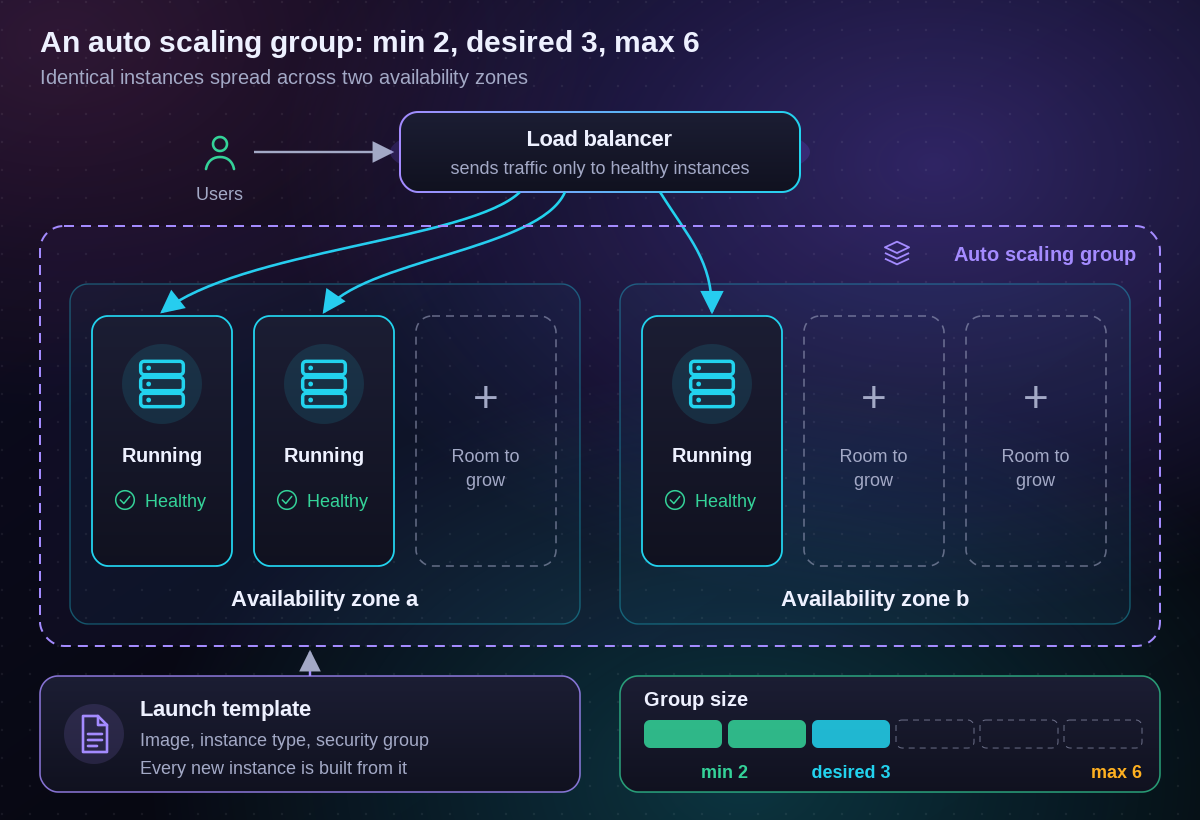
The group builds each new instance from a launch template, a saved recipe holding the image (the AMI from lesson 5), the instance type, the security groups and optional user data, a script that runs at launch, for example to install your app.
Three numbers set the size. The minimum is the fewest instances the group will run, the maximum the most, and the desired capacity how many it should run now. Scaling policies move desired up and down, always between the two.
The group spreads its instances evenly across the availability zones you choose. In the diagram, notice the empty slots: room to grow, up to six and no further.
The group also runs a health check, the test from lesson 3, on every instance: EC2 status checks by default, which catch a broken VM, and optionally the load balancer's checks, which catch an app that stopped answering. It replaces any instance that fails, after a grace period, 300 seconds by default in the console, that lets new instances boot.
Scaling policies and the load balancer
A scaling policy is the rule that changes desired capacity. It watches a metric, a number measured over time such as average CPU use, which Amazon CloudWatch, AWS's monitoring service, collects.
Target tracking works like a thermostat: you pick a metric and a target, and the group adds or removes instances to keep the metric near it. AWS creates the CloudWatch alarms, rules that fire when a metric crosses a threshold, and scales in more gradually than out. Its configuration is short JSON:
{
  "TargetValue": 50.0,
  "PredefinedMetricSpecification": {
    "PredefinedMetricType": "ASGAverageCPUUtilization"
  }
}
ASGAverageCPUUtilization is the group's average CPU and TargetValue the target; AWS's own example uses 40. A target well below 100 percent leaves headroom while new instances boot.
Step scaling sizes the response to how far the metric has gone past an alarm's threshold. You set an alarm, say CPU above 50 percent, and steps above it: in AWS's example, 60 to 70 percent adds 10 percent more instances, and above 70 adds 30 percent.
Scheduled scaling sets the minimum, maximum or desired capacity at set times, for peaks you know about: once, or on a cron expression of five fields (minute, hour, day of month, month, weekday). 0 18 * * 5 means every Friday at 18:00, in UTC unless you pick a time zone.
With a load balancer, the group registers each new instance in the target group, the list of servers the load balancer sends requests to, and deregisters each one it terminates. Since the load balancer sends requests only to healthy targets, a new instance gets traffic only after passing the load balancer's health checks. In the flowchart, notice that traffic is the last thing an instance gets and the first it loses.
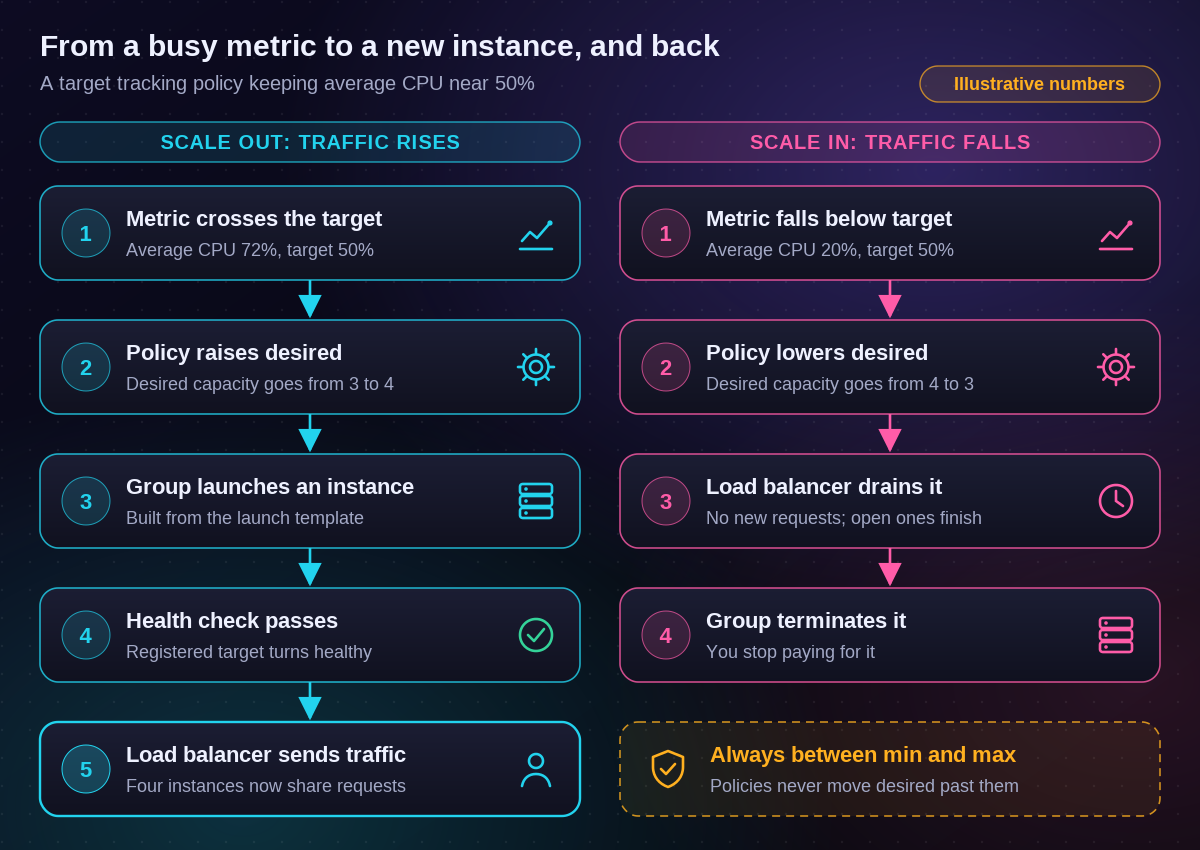
On scale-in, the load balancer drains the instance: requests already in progress may finish during the deregistration delay, 300 seconds by default on an Application Load Balancer; then the instance terminates.
Pitfalls: flapping, slow boots, state and budget
Flapping is a group that keeps adding and removing instances as the metric bounces around a threshold. Target tracking resists it by scaling in slowly; with step scaling, leave a gap, such as out above 70 percent and in below 30. Simple scaling policies, one alarm and one fixed change, wait out a cooldown, 300 seconds by default, after each change.
Slow boot times make every scale-out late: installing your app from user data can take minutes, while a spike arrives in seconds. Bake the app into the image, keep the target low for headroom, schedule ahead of known peaks, and turn on instance warmup, so a starting instance's numbers do not count in the metric yet.
State stored on instances is lost on scale-in. State, as lesson 9 explained, is data that must outlive one request, such as a login session. When an instance terminates, anything kept only there goes with it. Keep sessions in a shared store such as ElastiCache from lesson 8, and files in object storage.
Finally, the maximum protects your budget. A bug that spins the CPU, or a flood of bot traffic, looks like real demand, and the group grows to its maximum. Set it to the most you will pay for; at that limit, users get slower pages, not more servers.
Check yourself
A sale starts every Friday at 18:00 and traffic jumps tenfold in two minutes. With target tracking alone, pages are slow at first. Why, and what helps?
Target tracking reacts only after CPU rises, and new instances need minutes to launch, boot and pass health checks. A scheduled action that raises the minimum just before 18:00 has them ready in time.
After a quiet hour, some users were logged out mid-checkout. What most likely happened?
The group scaled in and terminated the instance holding their sessions, which vanished with it. Sessions in a shared store, such as ElastiCache, let any instance serve any user.
Why does autoscaling add instances of the same size instead of switching to a bigger instance type?
Changing an EC2 instance's type means stopping it, and the largest type is a ceiling; identical instances can come and go while the others keep serving.
Go deeper
- Capacity Planning in the Cloud Era: the next step, forecasting demand and planning the limits you set here.