Run Terraform Locally with LocalStack, Hands-On
In lesson 16, Terraform wrote a text file. The next step is real cloud resources, but an AWS account needs a credit card, and a forgotten resource can turn into a bill. LocalStack lets you practise first, on your laptop, with the same Terraform code. This lesson shows what LocalStack is, how to point Terraform's AWS provider at it, how to create and check a bucket and a queue, and where an emulator stops standing in for the cloud.
What LocalStack is
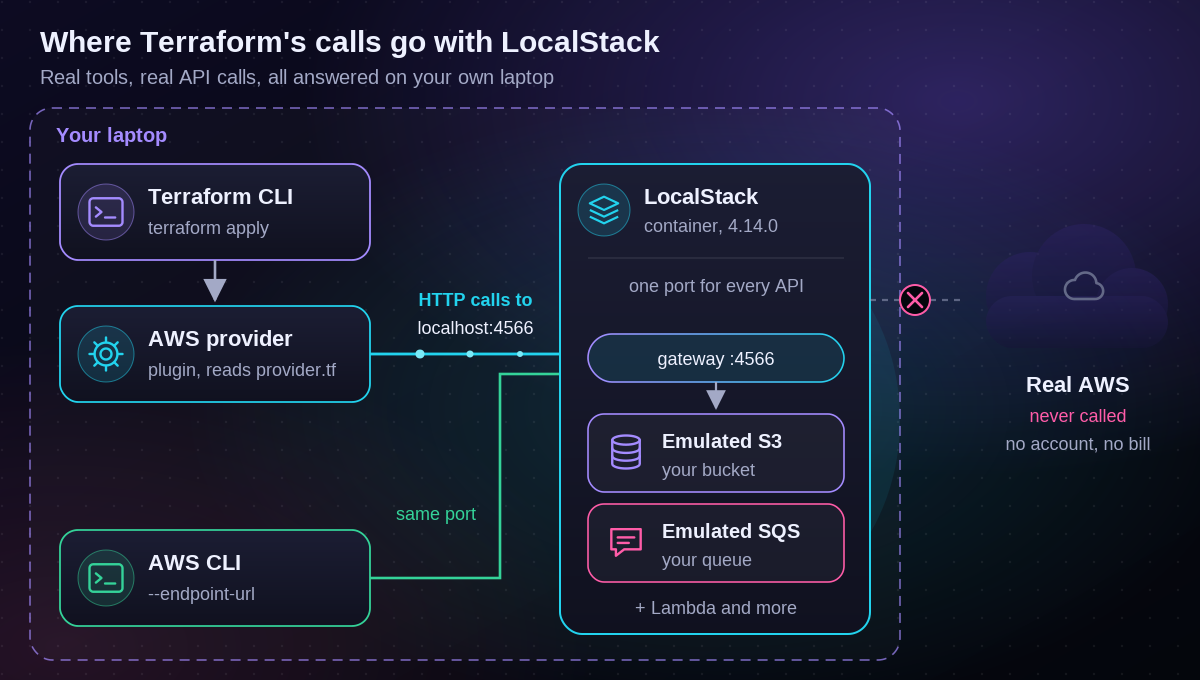
LocalStack is an emulator: a program that imitates another system's interface, so tools built for the real system work with it. It accepts the same API requests as AWS services such as S3, SQS and Lambda, answers in the same format, and keeps what you create in its own memory.
It runs in one container, the packaged app from lesson 5, and every emulated service answers on one port, 4566. It accepts any credentials and files everything under one made-up account, 000000000000, so you need no AWS account and no credit card.
The lab pins version 4.14.0 because, as lesson 15 noted, newer images need a LocalStack account and token to start. In the diagram, notice that nothing on the Terraform side knows about LocalStack except the address its calls go to.
Start LocalStack and check its health
Docker Compose starts containers from a settings file, docker-compose.yml. The lab's file is the one from lesson 15: the image localstack/localstack:4.14.0, with port 4566 published on 127.0.0.1 only, so only your own machine can reach it.
docker compose up -d starts it in the background. LocalStack also answers a health check of its own on the same port. Here is the call and its answer, trimmed:
curl http://localhost:4566/_localstack/health
{"services": {… "s3": "available", … "sqs": "available", …}, … "version": "4.14.0"}
available means the service is ready and starts on first use; afterwards it says running. If curl reports a refused connection, the container is not up yet.
Point the Terraform AWS provider at LocalStack
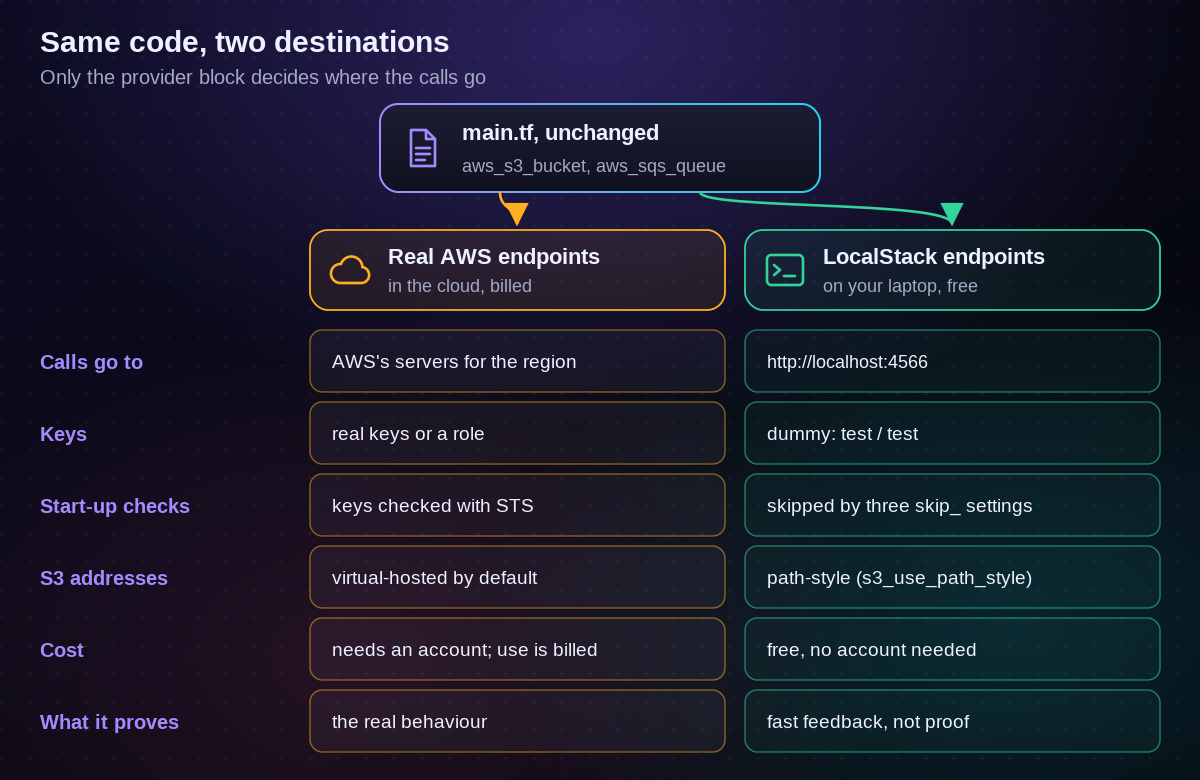
Out of the box, the AWS provider sends each call to AWS's own endpoint for that service, the web address from lesson 3, and checks your keys with AWS first. The lab's provider.tf changes both. Below a terraform block that pins hashicorp/aws to 6.34.0, it holds this, without comments:
provider "aws" {
  access_key = "test"
  secret_key = "test"
  region     = "us-east-1"

  s3_use_path_style = true

  skip_credentials_validation = true
  skip_metadata_api_check     = true
  skip_requesting_account_id  = true

  endpoints {
    s3  = "http://localhost:4566"
    sqs = "http://localhost:4566"
  }
}
Dummy credentials. test and test fill the access key slots from lesson 11. LocalStack accepts any value, and a real key never belongs in a lab folder.
Path-style S3. By default the provider puts the bucket name in the host name, as in http://course-labs-demo-bucket.localhost:4566, which your computer would have to look up. s3_use_path_style = true moves it into the path: http://localhost:4566/course-labs-demo-bucket.
Skipped checks. At start-up the provider normally validates the keys with STS, AWS's Security Token Service, may ask the instance metadata service from lesson 11 for credentials, and requests your account ID. Only real AWS answers those, so the three skip_ settings turn them off.
The endpoints block. Each line sends one service's calls to LocalStack. A service you use but leave out still goes to real AWS, which rejects the dummy keys.
In the comparison, notice that the resource code sits above both columns: only the provider settings differ.
Create a bucket and a queue, then check them
The lab's main.tf holds two resources and never mentions LocalStack. A queue, as in lesson 9, holds messages until a worker takes them; Amazon SQS is AWS's queue service. Without comments:
resource "aws_s3_bucket" "lab" {
  bucket        = "course-labs-demo-bucket"
  force_destroy = true
}

resource "aws_sqs_queue" "lab" {
  name = "course-labs-demo-queue"
}
force_destroy = true lets terraform destroy delete the bucket even with files in it: handy in a lab, dangerous with real data. You run terraform init and terraform apply as in lesson 16. The queue takes about half a minute even here, because the provider re-reads its settings until they match six times in a row.
The flowchart puts the lab in order. Notice step 5: a second tool, not Terraform, confirms that the bucket exists.
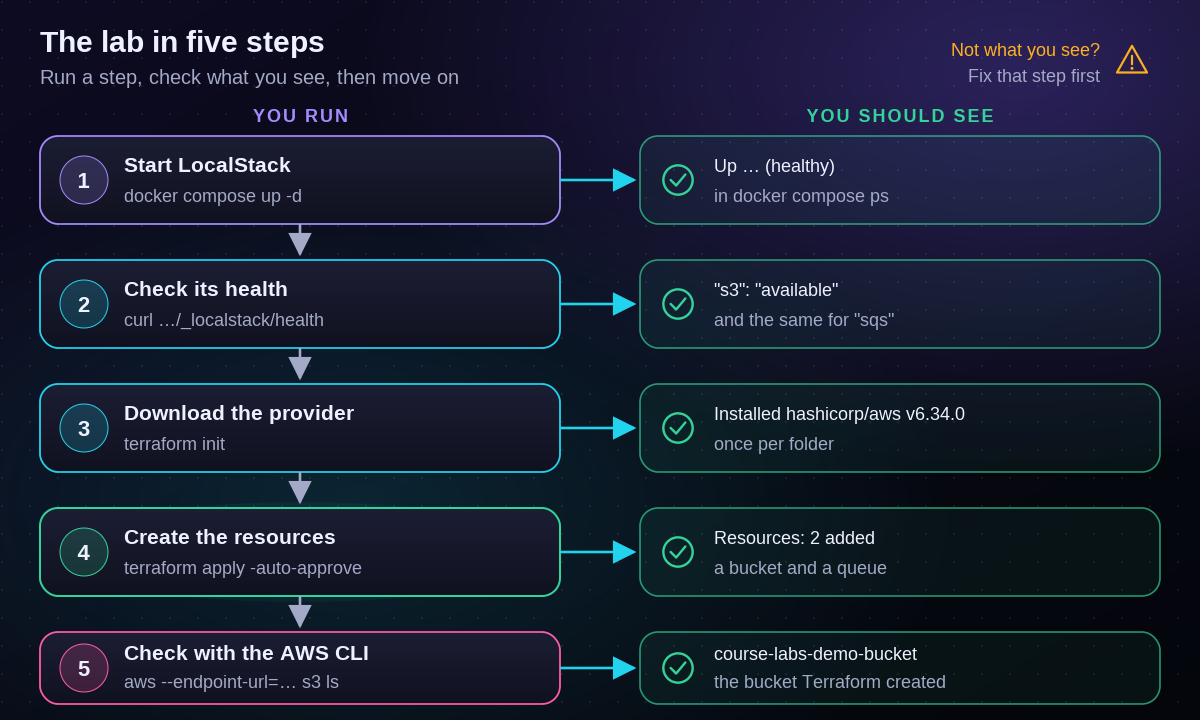
The AWS CLI is AWS's command-line tool. It needs the dummy credentials too, plus --endpoint-url on every command to reach LocalStack. An empty AWS_PAGER stops it opening output in a pager, a viewer such as less that you quit with q. Lines starting with $ are commands; the date is illustrative:
$ export AWS_ACCESS_KEY_ID=test AWS_SECRET_ACCESS_KEY=test AWS_DEFAULT_REGION=us-east-1 AWS_PAGER=""
$ aws --endpoint-url=http://localhost:4566 s3 ls
2026-11-27 10:20:05 course-labs-demo-bucket
$ aws --endpoint-url=http://localhost:4566 sqs list-queues
{
    "QueueUrls": [
        "http://sqs.us-east-1.localhost.localstack.cloud:4566/000000000000/course-labs-demo-queue"
    ]
}
The queue URL carries LocalStack's account ID and localhost.localstack.cloud, a host name that points back at your own machine.
The limits of emulation
A simulator is only as good as its model, and LocalStack's model of AWS is incomplete. Treat a clean run as a fast feedback loop that catches typos, wrong references and missing settings in seconds, for free, not as proof that the code works in a real account.
- Coverage: not every service or option is emulated, and some exist only in LocalStack's paid editions.
- A frozen version: 4.14.0 gets no updates, so features AWS added after February 2026 are missing.
- Permissions: any keys work, so a clean run says nothing about whether a least-privilege role would be allowed.
- Names and limits: real bucket names are unique across all of AWS, and real accounts have quotas, limits on how much you can create.
- Cost: nothing is billed, so a pricey design, such as the NAT gateways of lesson 13, looks free.
Use LocalStack while you write, then a real test account before production; lesson 19 makes that switch.
Check yourself
You add a DynamoDB table to main.tf, and only the table fails, with an authentication error. Why?
The endpoints block has no dynamodb line, so that call went to real AWS, which rejected the dummy keys. Adding dynamodb = "http://localhost:4566" sends it to LocalStack.
A teammate deletes s3_use_path_style from provider.tf. Why could bucket calls start failing while the queue is fine?
Without it, the provider puts the bucket name in the host name, which your machine may not resolve to LocalStack. The setting only affects S3, so SQS calls are unchanged.
Your code applies cleanly against LocalStack. Why can it still fail in a real AWS account?
LocalStack accepts any keys, knows no one else's bucket names, has no real quotas and may not emulate every option. So a real role may lack permission, or the name may be taken.
Go deeper
- AWS Emulator on Apple Silicon: ARM64 Setup for M-Series Macs: AWS's own emulator, set up on an M-series Mac, a second way to run AWS APIs on your laptop.