Cloud IAM Explained: Users, Roles and Policies
On your first day in a cloud team, a colleague offers to paste a secret key into chat, and another mentions that the shared admin login can delete anything. Both moments are about cloud IAM: deciding who can do what, to which resource. This lesson covers users, groups, roles and policies, how requests are allowed or refused, and the habits that keep an account safe.
Users, groups, roles and policies
Identity and access management (IAM), which you met in lesson 4, is the set of rules for who may do what. The names here are AWS's; the ideas carry to other clouds. An identity is who is asking, and a resource is anything you act on, such as a bucket or a database table.
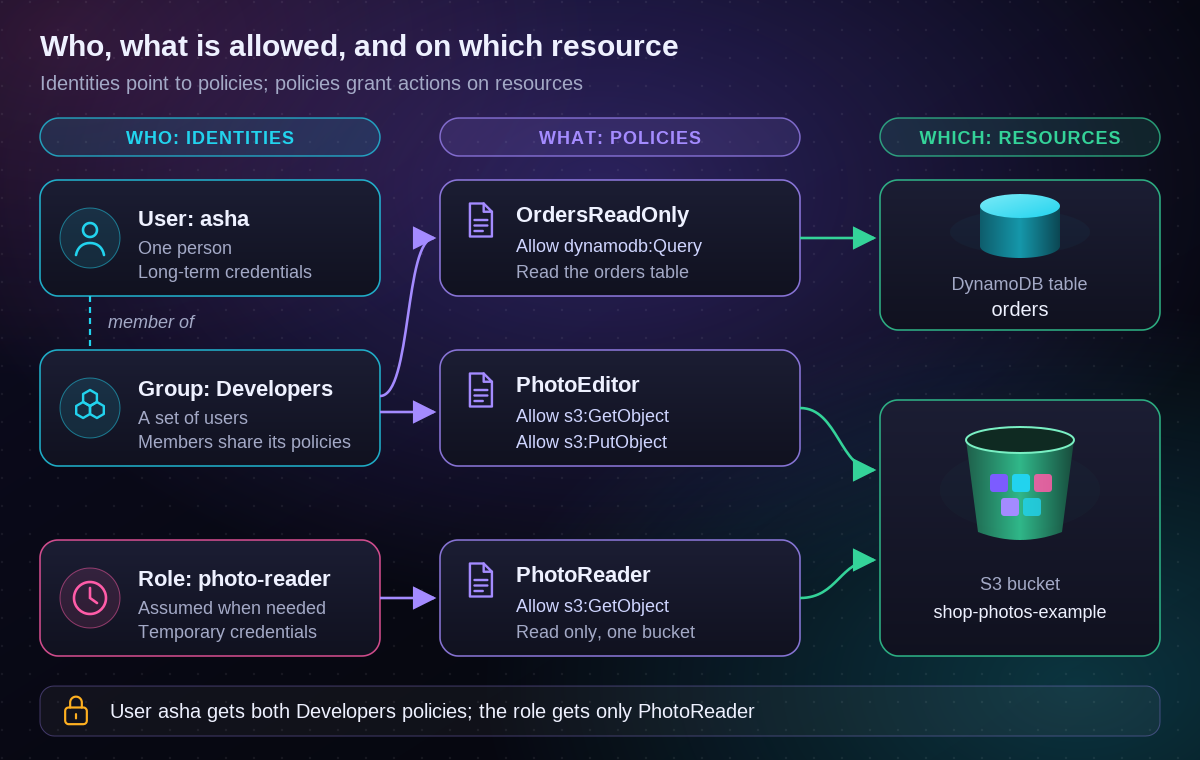
A user is an identity, usually for one person. It has long-term credentials, secrets that keep working until someone changes or deletes them: a password for the web console, or an access key, an ID and secret pair used by the command line and programs.
A group is a set of users. Attach a policy to the Developers group once, and every member gets it, including later joiners. A user can belong to several groups, but a group cannot sign in or contain other groups.
A role is an identity with permissions but no password or access key of its own. A trusted person or service assumes it, taking it on for a while, and receives temporary credentials that expire by themselves. Like the visitor pass, someone using a role has the role's permissions, not their own.
A policy is a permission document, written in JSON (named fields, as in lesson 9), that you attach to users, groups or roles; some resources, such as buckets, can carry one too. In the diagram, notice that permissions live only in the middle column: identities point to policies, and policies point to resources.
Anatomy of a policy
Each AWS resource has an Amazon Resource Name (ARN), a unique name such as arn:aws:s3:::shop-photos-example for a bucket; adding /* means every object inside it. This policy lets its holder download and upload photos in that bucket, but only from the office network:
{
  "Version": "2012-10-17",
  "Statement": [
    {
      "Effect": "Allow",
      "Action": ["s3:GetObject", "s3:PutObject"],
      "Resource": "arn:aws:s3:::shop-photos-example/*",
      "Condition": {
        "IpAddress": {"aws:SourceIp": "203.0.113.0/24"}
      }
    }
  ]
}
Version names the policy language: 2012-10-17 is the current one, not a date you change. Statement holds a list of rules, each with these parts:
Effect:AlloworDeny, and case sensitive.Action: the API calls covered, writtenservice:Operation;s3:GetObjectdownloads an object.Resource: the ARNs the statement applies to.Condition, optional: extra tests on the request. Here the caller's address must be in203.0.113.0/24, an illustrative range in the CIDR notation of lesson 7.
The usual mistake is pairing an action with the wrong kind of ARN. s3:ListBucket, which lists a bucket's contents, applies to the bucket's ARN, while object actions such as s3:GetObject apply to the ARN ending in /*. Mix them up and the statement grants nothing you wanted.
Authentication vs authorisation
Authentication proves who is asking: you sign in with a password, or a program signs each request with its secret key. Authorisation then decides whether that identity may perform this action on this resource.
AWS evaluates every policy that applies. In the flowchart, notice that Deny is checked first, so one Deny outweighs any number of Allows, and that the bottom box, where nothing matched, also refuses.
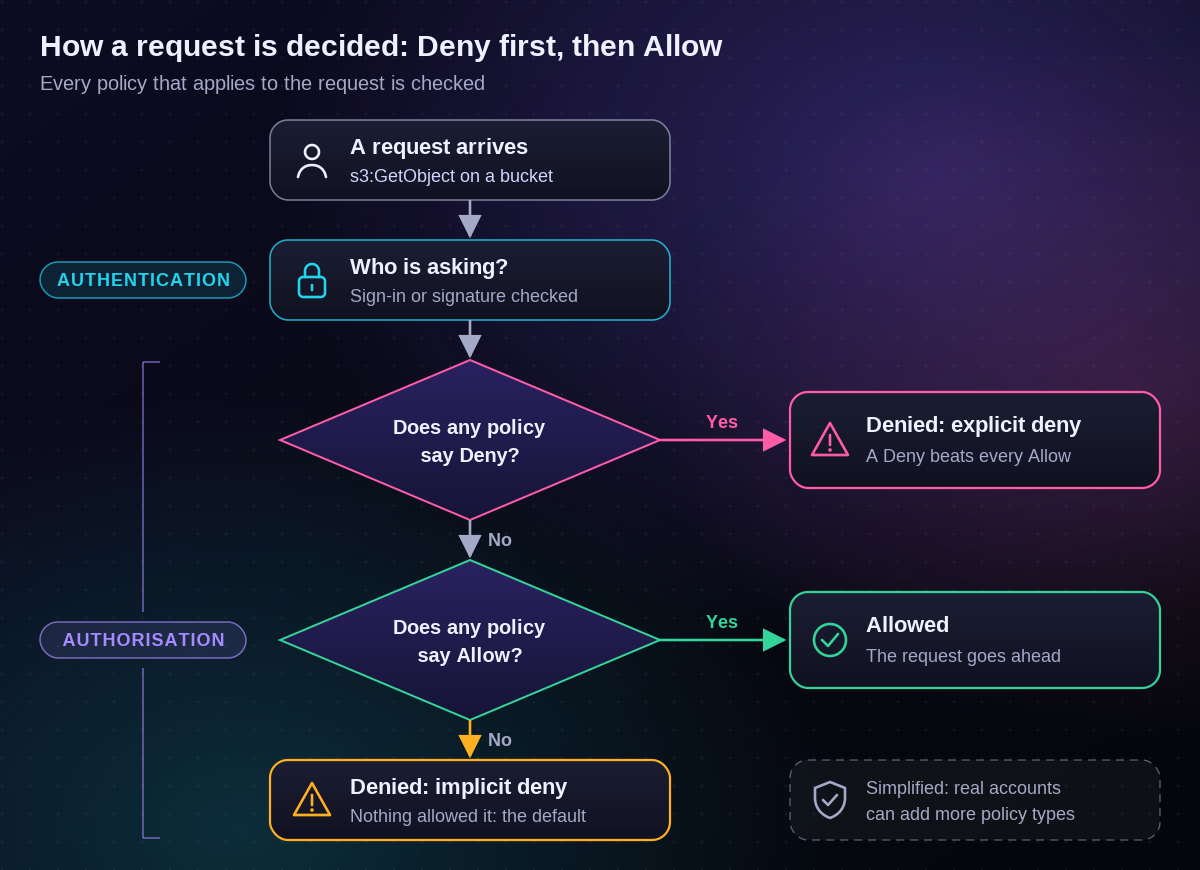
That bottom box is the implicit deny: by default every request is refused, so a brand-new user can do nothing until a policy allows it. An explicit deny is a statement whose Effect is Deny, and it overrides any Allow. Real accounts can add more policy types, such as organisation-wide guardrails, but both rules still hold. The one exception, the root user, comes below.
Least privilege: a server gets a role, not a key
Least privilege means granting only the permissions a task needs, on only the resources it needs. A photo app that only reads one bucket gets read access to that bucket alone, so a bug or attacker using it can do little damage.
The tempting shortcut for a program is a user's access key saved on the server. That key never expires, gets copied into backups and disk images, and works from anywhere if it leaks. AWS recommends that workloads, the programs and servers doing your work, use roles instead.
A role has a trust policy, a policy on the role itself that says who may assume it. This one lets the EC2 service assume the role for your VMs:
{
  "Version": "2012-10-17",
  "Statement": [
    {
      "Effect": "Allow",
      "Principal": {"Service": "ec2.amazonaws.com"},
      "Action": "sts:AssumeRole"
    }
  ]
}
Principal names who is trusted. sts:AssumeRole is the action of taking on the role; sts is the AWS Security Token Service, which issues temporary credentials. The role's permissions come from a separate policy, here PhotoReader. You attach the role to a VM through an instance profile, a container holding exactly one role. In the diagram, notice that nobody ever saves a key on the VM.
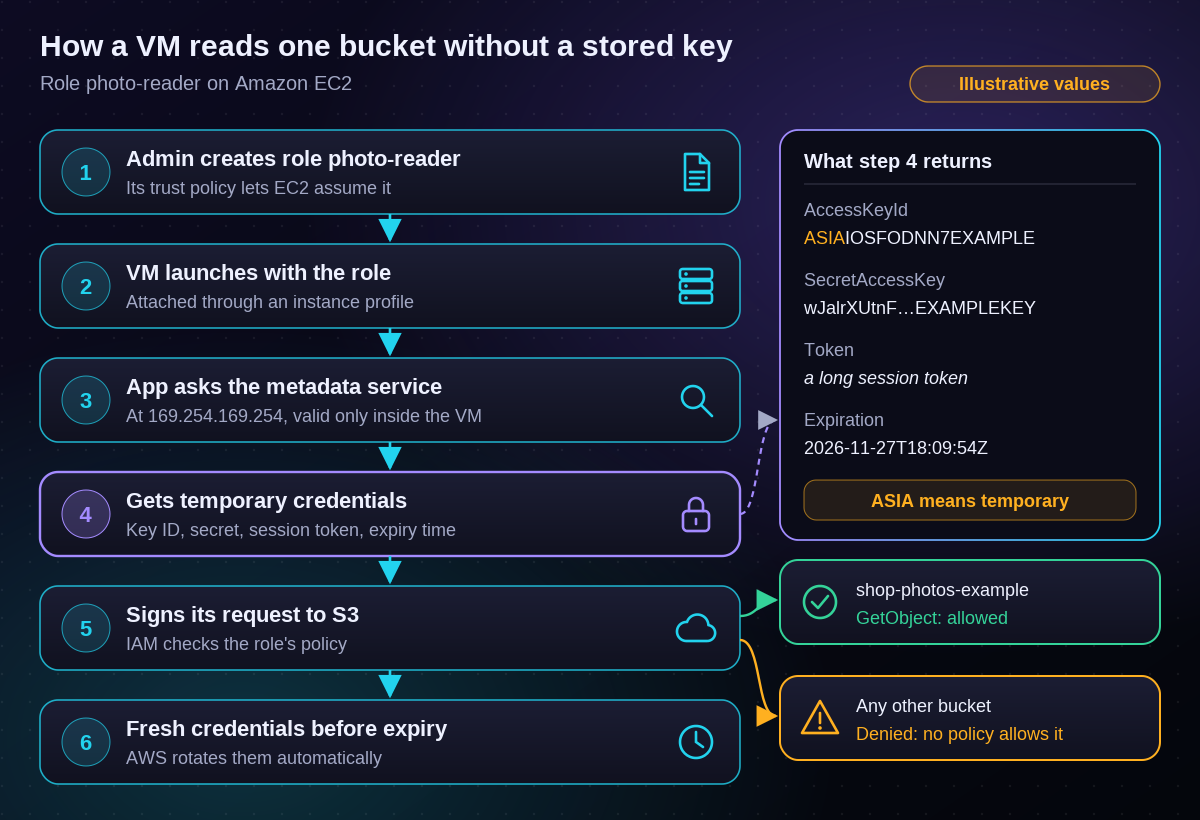
The instance metadata service answers at 169.254.169.254, an address valid only from inside the instance. The AWS CLI and the AWS SDKs, the libraries programs use to call AWS, fetch credentials from it automatically. Temporary access key IDs start with ASIA and long-term ones with AKIA, a quick way to tell which kind leaked.
The common slip is an old key left on the VM: the AWS CLI checks environment variables and its credentials file before instance profile credentials, so the forgotten key quietly wins.
Common mistakes that leak accounts
Using the root account. The root user is the sign-in created with the AWS account, an email address and password with complete access to everything in it. AWS strongly recommends not using it for everyday tasks, even administrative ones. Protect it with MFA, give it no access keys, and work as a user or role.
Wildcard permissions. A wildcard, *, matches anything, so "Action": "*" with "Resource": "*" allows every action on everything, like an administrator. Wildcards are fine in narrow spots, such as shop-photos-example/*. Start narrow, and add an action when a real task needs it.
Long-lived keys committed to Git. A key saved in code stays in the repository's history: deleting the file in a later commit leaves it in earlier ones. Anyone with a copy can use it until someone deactivates it. If a key leaks, deactivate and replace it first, then clean up.
No MFA. Multi-factor authentication (MFA) asks for a second proof after the password, such as a code from an authenticator app or a hardware security key, so a stolen password alone cannot sign in. Turn it on for the root user first, then for every person.
Check yourself
The Developers group's policy allows s3:DeleteObject on a bucket; a policy on asha's user denies it. Can asha delete objects there?
No. An explicit Deny overrides every Allow, wherever each is attached, so the group's Allow does not help.
A new teammate signs in to the console without trouble, then gets an access-denied error opening the orders table. Is their sign-in broken?
No: authentication worked, but no policy allows that action on that table yet, so the implicit deny applies. Adding them to a group with the right policy fixes it.
A script on an EC2 VM reads a bucket using an access key saved in a config file. It works, so why switch to a role?
The saved key never expires and works from anywhere if it leaks. A role's temporary credentials rotate automatically, leaving no lasting secret to steal.